Add Video to Amazon Listing: Who Can and How
If you want to add video to Amazon listing pages, the first surprise is that the option does not appear the same way for every seller. Some accounts see a clear upload page, others have to hunt for it, and a few never find it at all. On top of that, finished videos get rejected for reasons that have nothing to do with production quality.
This guide explains who can upload, where to click in Seller Central, what Amazon checks before approving a video, and how to avoid the most common rejections. It is written for brand owners who already have a video, or are about to commission one, and want the upload to go smoothly on the first try.
Who Can Add Video to Amazon Listing Pages?
Eligibility is the part sellers ask about most, and it is also the part where published advice disagrees. Different sources describe the rules differently, which is a sign that Amazon adjusts them over time and by account.
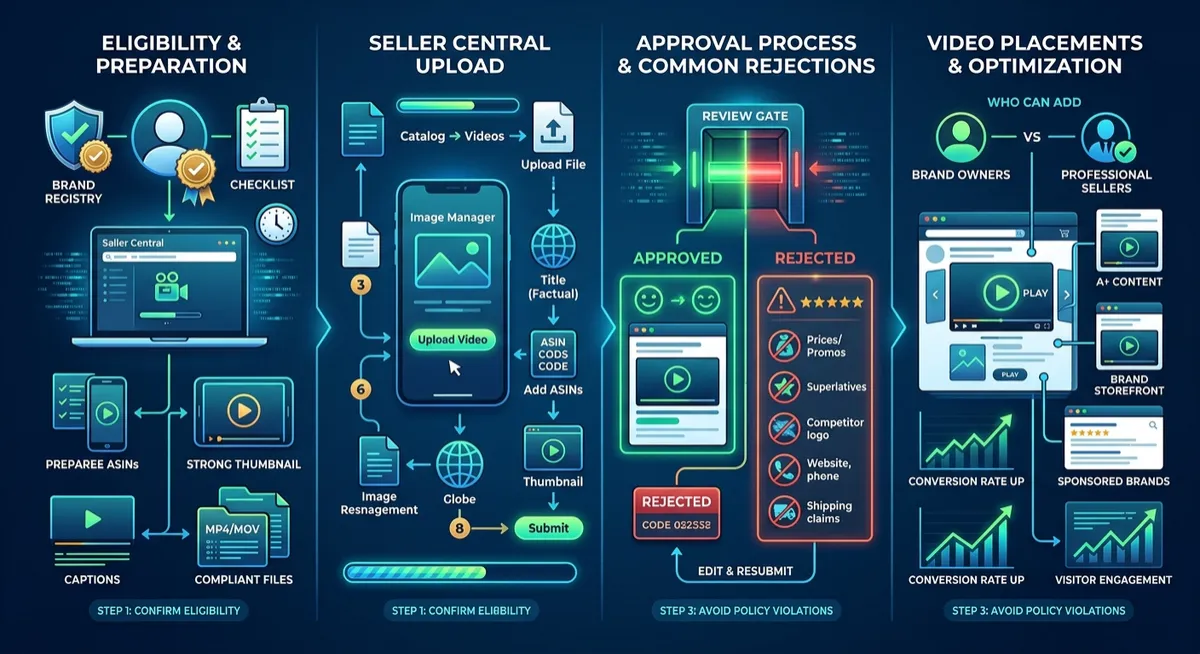
Here is what is generally consistent. First, brand owners enrolled in Amazon Brand Registry have the broadest access to video placements. That includes listing video, video inside A+ Content, Brand Store video, and Sponsored Brands video ads. Second, some Professional sellers without Brand Registry report being able to upload listing video, usually when the account has sales history on the ASIN. Third, the option can vary by category and by account standing.
Because of this, treat your own Seller Central as the final answer. If the Upload and Manage Videos page loads for your account, you are eligible. If it does not, enrolling the brand in Brand Registry is usually the most reliable way to unlock video placements. However, Brand Registry requires an active or pending trademark, so factor in that timeline before you plan a launch around video.
What to Prepare Before You Add Video to Amazon Listing
Most upload problems are decided before you open Seller Central. Prepare these items first, and the upload itself takes only a few minutes.
A finished, compliant video. Review it against the rejection list further down this page before you upload, not after.
The right ASIN or ASINs. Know exactly which product pages the video belongs to, especially if you sell variations.
A strong thumbnail. The first frame is what shoppers see before they press play. Our guide to Amazon video thumbnail optimization covers how to choose it.
Captions or on-screen text. Most shoppers watch without sound, so burned-in text matters. See our article on Amazon video captions.
A clean file. Export in a common format such as MP4 or MOV, and confirm the accepted formats on the upload screen itself, because specs can change.
If you still need to produce the video, our Amazon listing video optimization guide explains what to put in it.
How to Add Video to Amazon Listing in Seller Central
Amazon renames menus from time to time, so use these steps as a map rather than a script. If a menu name differs, use the Seller Central search bar and type "video."
Sign in to Seller Central with the account that owns the brand.
Open the Catalog menu and look for Upload and Manage Videos. On some accounts the same function lives inside Image Manager or the listing editor instead.
Select Upload Video to begin a new submission.
Choose your file from your computer. The screen shows the accepted formats, so check them here.
Add a title that describes the video accurately. Keep it plain and factual, not promotional.
Select the related ASINs that the video should appear on.
Add or confirm the thumbnail, if your account offers that option.
Submit for review. Then check the status from the same page.
After submission, Amazon reviews the video. Approval can take anywhere from a short wait to a few days, so avoid scheduling an upload for the hour before a launch. Once approved, the video typically appears in the listing's image carousel, and shoppers can play it from the product page.
Why Amazon Rejects Video (and How to Fix It)
A rejection usually points to a policy issue, not a quality issue. Amazon's video guidelines generally restrict the following kinds of content, so scan your video for each before you submit.
Prices, discounts, or promotions. Anything time-sensitive can become wrong overnight, so it is a common reason for rejection.
Claims about reviews, ratings, or "best seller" status. Superlatives and comparisons to other brands are risky.
Competitor brand names or logos. Even a blurred logo in the background can trigger a flag.
Contact details or external links. Websites, social handles, phone numbers, and QR codes do not belong in listing video.
Shipping or fulfillment promises. These belong in the listing, not in the video.
Unsubstantiated health or safety claims. This is especially important in supplements and baby products.
Content that does not match the product. If the ASIN shows a different color, size, or bundle than the video, expect a rejection.
Unlicensed music. Use royalty-free tracks that you have a license to use.
If your video is rejected, read the reason code, edit the specific problem, and resubmit. Do not simply re-upload the same file, because the same flag will appear again.
Add Video to Amazon Listing vs. Other Video Placements
Sellers sometimes mix up the different places video can live, so it helps to separate them. Each placement has its own upload route and its own job.
Placement | Where it appears | Typical purpose |
|---|---|---|
Listing video | Image carousel on the product page | Show the product in use and answer objections |
A+ Content video | Inside the enhanced content section | Tell the brand story and explain features |
Sponsored Brands video | Search results as an ad | Win the click against competitors |
Brand Store video | Your storefront pages | Build brand recognition across products |
Listing video is the foundation, because it works on every visit rather than only when you pay for traffic. When you are ready to promote it, our guide to Amazon Sponsored Brand Video strategy shows how to turn the same footage into an ad.
What to Do After You Add Video to Amazon Listing
Uploading is the start, not the finish. Next, check that the video plays correctly on desktop and on mobile, since most Amazon shoppers browse on a phone. Then watch your listing's conversion over the following weeks, comparing it against the period before the upload.
Keep in mind that a video is only one input. Price changes, new reviews, and ad spend can all shift conversion at the same time, so change one thing at a time when you can. To measure the effect properly, read our article on Amazon video analytics.
Finally, plan to refresh. A video that was strong at launch can age as competitors improve, so revisit it every few months and test a new hook or opening scene.
A Quick Pre-Upload Checklist
Before you add video to Amazon listing pages for any ASIN, confirm the following.
The Upload and Manage Videos page loads in your Seller Central.
No prices, links, contact details, or competitor logos appear in the video.
Both the thumbnail and the first three seconds make the product obvious.
Captions or on-screen text carry the message without sound.
The music is licensed, and the claims in the video are accurate.
The video matches the exact product, color, and variation on the ASIN.
Need a Video That Passes the First Time?
At MyBrand Videos, we produce Amazon listing, PPC, and Brand Story video for sellers who want content that is built around Amazon's rules from the first frame. We plan the script, shoot or generate the footage, and deliver files ready to upload, so you avoid rejections and rework.
Related articles:
